Visiting Card Proof Checklist: 15 Checks Before You Approve
By Business Cards Store Editorial Team | Published | Updated | Ordering, proofs and returns
The proof is the last point at which anything printed on your card can change. Once you approve it, the card goes into production, and the name, role, logo and colour are fixed. This checklist helps you catch problems in a few minutes.
What the proof is
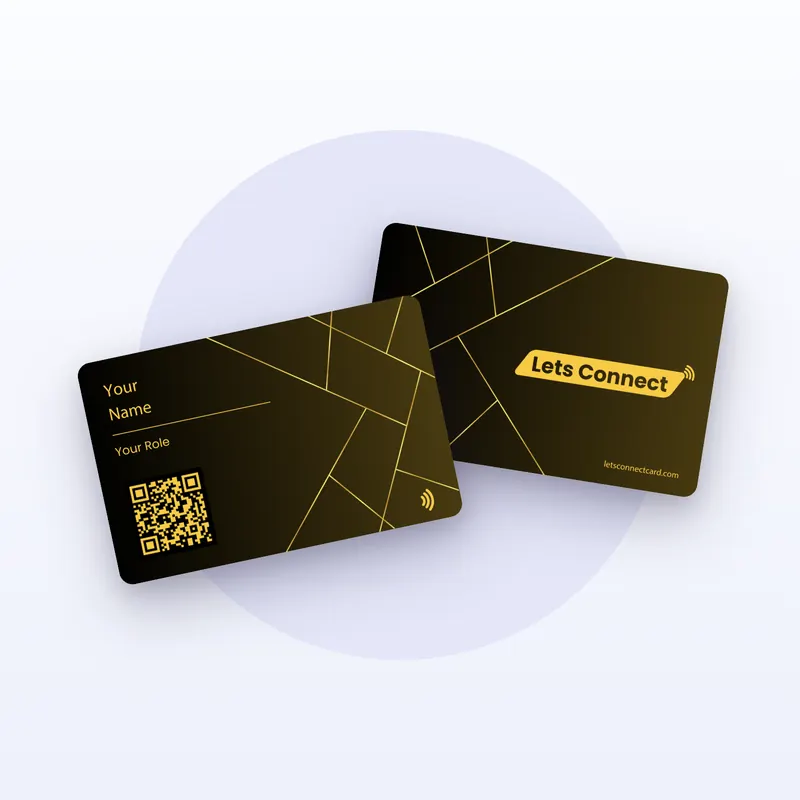
After checkout, we send you a digital proof: an image of your card as it will be printed. It shows the material and colour you chose, your name and role, your logo or design, and the QR code on QR versions. Production starts only after you approve it.
You can ask for changes before approving. Check the corrected version as carefully as the first one.
The 15 checks
Work through these in order. Read the proof at actual size on your phone as well as on a larger screen.
| # | Check | Why it matters | How to fix |
|---|---|---|---|
| 1 | Spelling of your name | It is the one word people must get right | Ask for the correction before approving |
| 2 | Job title or role | Printed titles can't change later | Shorten it, or keep detail for the profile |
| 3 | Company name | Matches your brand and legal name | Correct spelling, capitals and spacing |
| 4 | Phone number | A wrong digit makes the card useless for calls | Check every digit against your phone |
| 5 | Country code | Contacts abroad need it to call you | Use the full format, for example +44 for the UK |
| 6 | Email address | One wrong letter loses the contact | Type it into a new email and send yourself a test |
| 7 | Website | Should be the address you will keep | Use the shortest stable address |
| 8 | Logo position | Logos too close to the edge look cramped | Ask for it to be moved or resized |
| 9 | Logo contrast | Dark logos disappear on black PVC and metal | Use a light version, or a light-coloured material |
| 10 | Logo on bamboo | Fine lines can be hard to read on grain | Use a bolder version of the logo |
| 11 | QR code present | QR versions must show the code | Ask for it to be added if it is missing |
| 12 | QR code space | The code needs clear space around it | Move other elements away from it |
| 13 | Colour chosen | The proof should match the colour you ordered | Check it against your order confirmation |
| 14 | Partner branding | Shows unless you chose to remove it | Check it matches the add-on you bought |
| 15 | Profile details | The card opens your profile | Make sure your profile name and details match the card |
Text: checks 1 to 7
Most mistakes on visiting cards are typing mistakes. Read each line slowly, out loud if it helps. Check the parts people skim: middle initials, hyphens, apostrophes in names, and the letters in your email address before the @.
Write your phone number in full international format, with the country code, if you meet people from other countries. For example, a UK mobile starts +44 7. People abroad can then call you without guessing the code.
Keep your job title short. Long titles wrap onto two lines and get harder to read. If your role changes often, consider a general title on the card and the precise one on your profile, which you can edit at any time.
Logo and design: checks 8 to 10
Look at the proof at the size of a real card, 85.6 × 54 mm. A logo that looks fine on a large screen can be too small or too close to the edge in real life.
Contrast matters most on dark cards. Black PVC and both metal cards, Black & Gold and Black & Silver, are dark. A dark logo on them can vanish. Ask for a white, light, gold or silver version. On bamboo, the natural grain shows behind the print, so fine lines and small text can be harder to read. A bolder version of your logo usually works better.
If you used the Fully Custom Design add-on, check that the artwork sits where you expected on the front and back, and that nothing important has been cut off at the edges.
QR code and colour: checks 11 to 14
Every visiting card in PVC, bamboo or metal has a printed QR code. On review and social cards, the Simple version is tap only, with no QR code, and the other versions add one. Check that the proof matches the version you bought.
The QR code needs clear space around it. If your logo or text crowds it, ask for the layout to be adjusted.
Check the colour on the proof against the colour on your order. PVC comes in Black, Green, Brown and Blue; bamboo in White bamboo and Original bamboo; metal in Black & Gold and Black & Silver. Screen colours vary, so use the proof to confirm the choice, not to judge exact shade.
If you bought the Remove LC branding add-on, the platform partner's mark should not appear. If you didn't, it will.
Profile: check 15
The card opens your online profile, so the profile is part of what you are approving in practice. Make sure the name, number, email and links on your profile match the card. Unlike the printed card, the profile can be edited at any time without reprinting.
Common mistakes to look for
These are easy to miss because the eye reads what it expects.
- Swapped digits in phone numbers, such as 56 instead of 65.
- A missing or extra letter in an email address.
- Old details copied from a previous card.
- Capitals, such as "Mcdonald" for "McDonald".
- A website without the address you actually use, such as an old domain.
Reading the proof backwards, line by line, helps you spot typing errors.
How to ask for changes
- List every change in one message, numbered, so nothing is missed.
- Quote the exact text you want, including capitals and spacing.
- For logo changes, send the version you want used.
- Check the corrected proof against your list before you approve.
A two-minute final pass
Before you press approve, do one last pass in this order:
- Read your name and role out loud.
- Dial the phone number on the proof from another phone, or check it digit by digit.
- Type the email address into a new message.
- Hold the proof at arm's length on your phone. Can you read everything?
- Check the colour and add-ons against your order.
If anything gives you pause, ask before approving. It costs nothing to check, and a reprint is a new order.
What happens after approval
- Production starts. Printed details can no longer change.
- Timing is confirmed after you order. Our guide to visiting card turnaround explains what sets it.
- Any delivery charge was shown at checkout before you paid.
- When the card arrives, tap it with your phone and scan the QR code, if it has one, to check your profile opens.
- Keep your profile up to date. That is the part you can always change.
Because cards are printed with your details, personalised cards are excluded from change-of-mind returns (can you return custom visiting cards? explains why). A faulty card is covered by our Refund & Returns policy. If you are still choosing what to customise, read our guide to custom visiting cards.
Frequently asked questions
When do I get the proof?
After checkout. We send a digital proof of the card, and production starts only after you approve it.
Can I ask for more than one change?
Yes. List every change in one message, then check the corrected proof before you approve.
Can I change the card after I approve the proof?
The printed details can't change after approval. Your profile can be edited at any time without reprinting.
Why does the colour on screen look different?
Screens show colour differently. Use the proof to confirm you chose the right colour, such as Green PVC or Original bamboo, not to judge the exact shade.
Does every card have a QR code?
Every visiting card in PVC, bamboo or metal does. On review and social cards, the Simple version is tap only.
What if the card arrives with a fault?
Faulty cards are covered by our Refund & Returns policy. Personalised cards are excluded from change-of-mind returns.
Keep reading
Browse all buying guides, see custom visiting cards and where to buy visiting cards, or choose your card.